How to Use NFC on iPhone: Read, Write and Automate
iPhones have NFC, but there is no switch to turn on. Here is how iPhone NFC reads cards and tags, how to write your own tags, and how to fix a tap that does nothing.
How to use NFC on iPhone is one of the most common questions we get from shop owners and printers, because iPhones have no NFC switch in Settings. The good news: on iPhone XS and newer, NFC is always on. You simply hold the top of the phone near an NFC tag or card, a banner appears, and one tap opens the link.
This guide explains iPhone NFC step by step: reading tags on new and older iPhones, writing your own tags, running Shortcuts automations with a tap, and fixing the common reasons a tap does nothing. The steps apply to every iPhone from the iPhone 7 onwards.
Does my iPhone have NFC
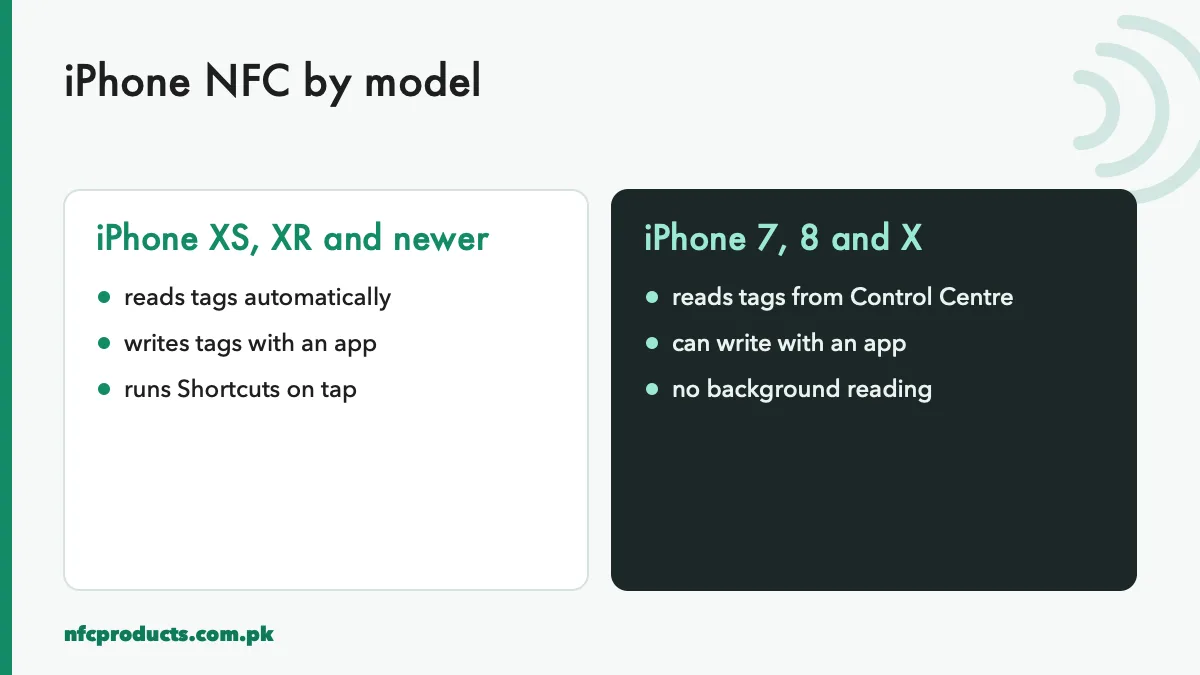
Every iPhone from the iPhone 7 onwards has an NFC chip. What differs is how each model reads NFC tags.
What each iPhone can do with NFC.
iPhone model
Reads NFC tags
How
iPhone XS, XS Max, XR and newer
Yes, automatically
Background reading, no app
iPhone 7, 7 Plus, 8, 8 Plus, X
Yes
NFC Tag Reader in Control Centre, or an app
iPhone 6s and older
No
No NFC for tags
Apple Pay also uses NFC, but paying is separate from reading tags. Whether Apple Pay is available to you depends on your bank. Reading NFC business cards, review stands and menus works regardless.
How to use NFC on iPhone XS and newer
On iPhone XS, XR and every later model, background tag reading is always on. Follow these steps.
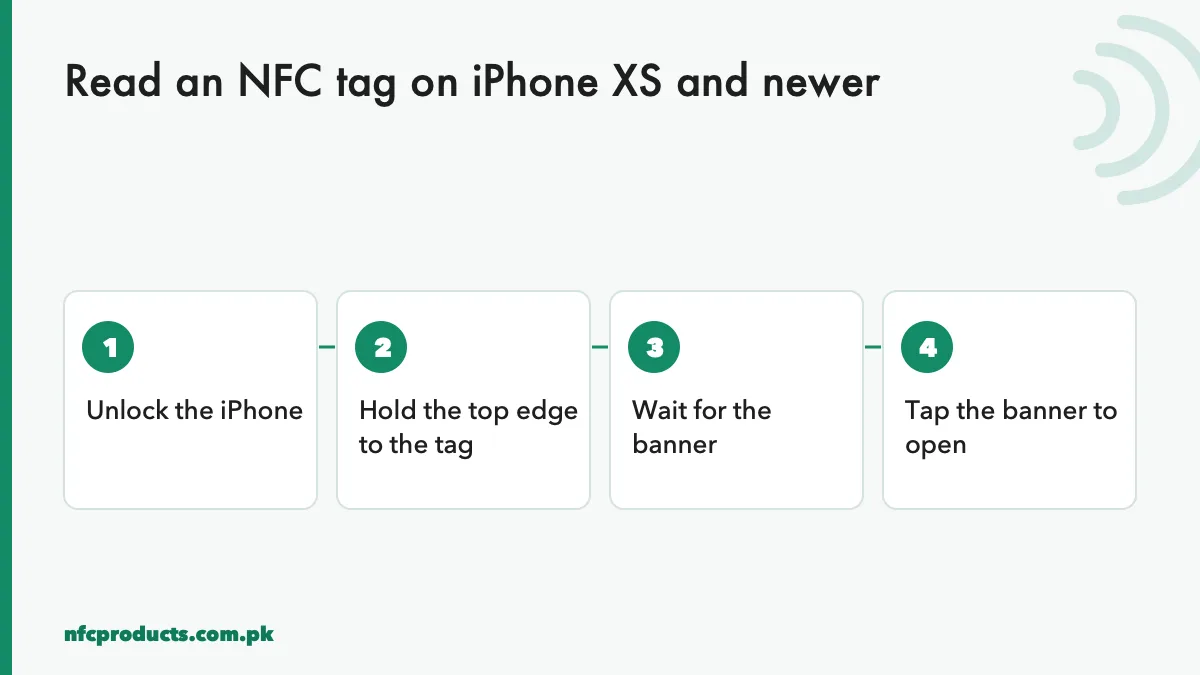
Reading an NFC tag on a modern iPhone.
Unlock the iPhone or at least wake the screen. The iPhone reads tags when the screen is on.
Hold the top edge near the NFC tag. The iPhone NFC antenna is at the top, around the camera. Bring that part within 1 to 2 cm of the card or sticker.
Keep still for a moment. A banner slides down from the top of the screen, showing the link or action.
Tap the banner. Safari opens the link, or the relevant app opens.
That is all. No app to install, no switch to turn on. This is why NFC business cards and review standees work so smoothly with iPhone users.
When background reading does not work
Apple pauses background tag reading in a few situations, so a tag may seem dead when it is not:
The camera is open, including the QR scanner.
Apple Pay or Wallet is in use.
The iPhone is in Airplane mode.
The iPhone has just restarted and has not been unlocked yet.
Another NFC session is active, for example an app that is already scanning.
Close the camera or Wallet, unlock the phone and try again.
How to use NFC on iPhone 7, 8 and X
These models have NFC but do not read tags in the background. Use the NFC Tag Reader in Control Centre, available from iOS 14.
Open Settings → Control Centre.
Add NFC Tag Reader to the included controls.
Swipe to open Control Centre and tap the NFC button.
Hold the top of the iPhone to the NFC tag.
Tap the banner that appears to open the link.
Alternatively, install an app such as NFC Tools and use its Read function.
How to write an NFC tag on iPhone
Reading needs no app, but writing does. From iOS 13, iPhones can write to NFC tags with apps. The free NFC Tools app by wakdev is the most widely used.
Install NFC Tools from the App Store.
Open the app and tap Write.
Tap Add a record and choose the type, usually URL / URI.
Enter the link, for example your Google review link or profile page, and confirm.
Tap Write, then hold the top of the iPhone to the blank NFC tag until the app confirms.
Close the app, lock and unlock the phone, and tap the tag again to test.
If the link opens, the tag is ready. For business use, lock the tag afterwards so nobody can change it: in NFC Tools this is under Other → Lock tag. Locking is permanent, so test first. Our guide to programming and locking NFC tags goes into more detail.
Write links as a URL record, not a plain text record. iPhones open URL records in the background, but a plain text record may show nothing.
Run Shortcuts with an NFC tag
iPhone NFC can also trigger personal automations through the Shortcuts app on iPhone XS and newer. This is how people make “tap the tag by the door to start my work playlist” or “tap the tag in the car to open maps”.
Open Shortcuts and go to Automation.
Create a new personal automation and choose NFC.
Tap Scan and hold the iPhone to the NFC tag. Name the tag.
Choose what should happen, such as playing music, sending a message or turning on Do Not Disturb.
Turn off “Ask Before Running” if you want it to run instantly (the option name can change between iOS versions).
Note that Shortcuts automations only run on the iPhone that set them up. They are for personal use, not for customers. For customer-facing tags such as menus and review stands, write a normal URL record instead. More ideas are in our guide to NFC tag uses.
What iPhones can and cannot do with NFC tags
It helps to know iPhone NFC’s limits before you design a product for customers.
Links (URL records): open in the background on iPhone XS and newer. This is the most reliable choice.
Phone numbers, email and SMS links: open the relevant app after a tap on the banner.
Contact cards (vCard) stored on the chip: support has varied across iOS versions. The dependable approach is a link to a hosted contact file or profile page. See our NTAG213 vs NTAG215 guide.
Wi-Fi records: Android phones can join Wi-Fi from a tag, but iPhones do not join a network directly from a standard Wi-Fi tag record. A link or QR code is the usual workaround. See NFC tag uses for business.
Writing and locking: possible with apps from iOS 13 onwards.
This is why most NFC business card platforms and review products use a simple link: it works the same on iPhone and Android.
Fix: iPhone NFC not reading a tag
If an iPhone does not react to an NFC tag, work through this list.
Check the model. iPhone 6s and older have no tag reading. iPhone 7, 8 and X need Control Centre.
Use the top edge. Most failed taps are simply the wrong part of the phone.
Remove the case, especially cases with metal, magnets or cards inside.
Close the camera and Wallet, and unlock the phone.
Test the tag on an Android phone. If it fails there too, the tag may be blank or damaged.
Check the record type with NFC Tools. A text record may not open anything; rewrite it as a URL.
Still stuck? Our full troubleshooting guide, NFC card not working, covers card-side problems too.
Best NFC tags for iPhone users
All standard NFC Forum Type 2 chips work with iPhones. For customer-facing products, choose:
NTAG215 for business cards, with room for long links. Used in all our blank NFC cards.
Anti-metal tags if the tag will sit on a fridge, machine or metal door. See anti-metal NFC tags.
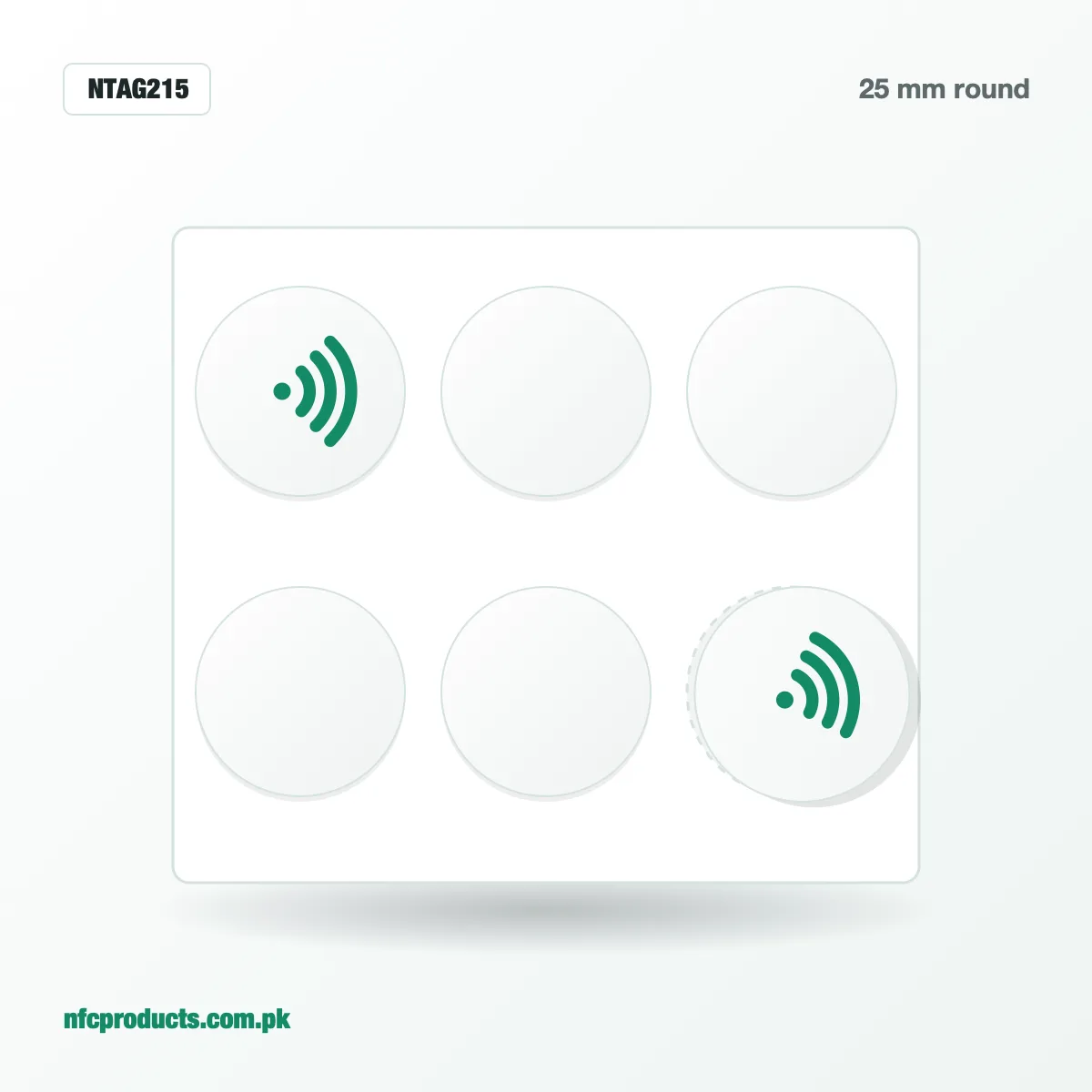
25 mm NTAG215 stickers read on every iPhone from the XS onwards.
Apple’s developer documentation for Core NFC lists the tag types iPhones support, if you need the technical detail.
Tips for shops that serve iPhone customers
A large share of customers in cities like Islamabad, Lahore and Karachi use iPhones. Small details make NFC products work better for them:
Print “Tap the top of your phone here” on standees and table stickers.
Place the NFC area where the top of a phone naturally goes, not at the bottom of a stand.
Use URL records, and test every product on at least one iPhone before handing it over.
Keep a printed QR code as a backup for older iPhones.
iPhone NFC and Apple Pay: what is the difference
People often mix up iPhone NFC tag reading and Apple Pay because both use the same antenna. They are separate features.
Tag reading lets the iPhone read NFC tags and cards that carry links, contacts or other public data. It needs no bank, no account and no setup.
Apple Pay uses a secure chip inside the iPhone to act like a contactless bank card at payment terminals. It needs a supported bank card added to Wallet.
So an iPhone user can tap your NFC business card or review stand whether or not they use Apple Pay. While Wallet or Apple Pay is open, though, tag reading pauses, which is one reason a tap sometimes does nothing.
Using iPhone to test NFC products before delivery
If you are a printer or reseller, an iPhone is one of your two essential test devices, along with an Android phone. A good test routine:
Read with no app open. Close every app, wake the screen and tap. This is what your client’s customers will do.
Check the banner text. The banner should show the expected link or domain. A strange domain means a wrong link.
Open the link. Make sure the page loads and looks right on a phone screen.
Read with NFC Tools. Check the record type is URL and the tag is locked if it should be.
Repeat on Android. Some problems only appear on one platform.
Test a sample from every batch, not only the first card. That habit catches mistakes before your client does.
Privacy and iPhone NFC
iPhone NFC tag reading is designed to be safe for users.
Nothing happens without a tap on the banner. Background reading shows a notification; the link only opens when the user taps it.
The range is tiny. A tag has to be almost touching the top of the iPhone.
Tags cannot install apps. A tag can only suggest a link or action; the user stays in control.
Apps need permission. Apps that scan NFC show an on-screen prompt while scanning.
For businesses, this means iPhone customers are comfortable tapping. Make the experience trustworthy by using your own domain in links and by locking tags so nobody can swap your link for another.
Tips for printers selling NFC cards to iPhone users
Many buyers of premium NFC business cards in Pakistan carry iPhones. A few details improve their experience:
Place the chip where the top of an iPhone lands when the card is held naturally. For most cards, the chip area near one short edge works well.
Keep links short. Short links read reliably on every chip and look cleaner in the banner.
Avoid text records. Always write a URL record for anything the customer should open.
Test with the phone case on. Most customers never remove their case.
Our blank NFC cards use NTAG215, which reads reliably on every iPhone from the XS onwards.
Frequently asked questions
How do I turn on NFC on my iPhone?
There is no switch. iPhone XS and newer read NFC tags automatically when the screen is on. On iPhone 7, 8 and X, add NFC Tag Reader to Control Centre.
Where is the NFC reader on an iPhone?
At the top edge, near the camera. Hold the top of the iPhone to the NFC tag.
Can an iPhone write NFC tags?
Yes, from iOS 13, with an app such as NFC Tools. Reading tags needs no app.
Why does my iPhone not read NFC tags?
The camera or Wallet may be open, the phone may be locked after a restart, the case may block the signal, or the tag may hold a record type the iPhone does not open automatically.
Does iPhone NFC work with all NFC tags?
It works with all standard NFC Forum tags, including NTAG213 and NTAG215. Some special chips need a dedicated app.
Can I use NFC on iPhone to share contacts?
Yes, by tapping an NFC business card that holds a link to a profile or contact file. The dependable method is a link rather than a contact card stored on the chip.
Send the product, grade and quantity on WhatsApp or the quote form. We reply within business hours (10am to 7pm) with a confirmed price and delivery date.